Dev Server
The Dev Server is the local development companion that enables productive inner-loop features in Uno Platform, such as Hot Reload, design-time updates, and IDE integration. It runs as a lightweight HTTP process and maintains a bidirectional channel with the IDE and the running application.
Overview
- Provides a transport between the IDE and the running application to exchange development-time messages
- Powers Hot Reload and Hot Design experiences by delivering code and XAML updates
- Starts automatically and stays out of the way; you usually do not have to configure it
Prerequisites
- Requires .NET SDK, same version as uno
- Works in Debug builds, where connection information is embedded so the app can reach the Dev Server
When and how the Dev Server starts
Note
The Dev Server starts only when Uno Platform packages are referenced by your project(s).
Note
The Dev Server won't start until NuGet package restore has completed successfully (a failed or pending restore prevents startup).
- Open the solution: the IDE reserves a free TCP port and writes it to each project's .csproj.user file under the UnoRemoteControlPort property.
- Build/run in Debug: the app is built with the Dev Server connection information.
- Launch the app (Debug): the app connects back to the Dev Server.
- Develop: the IDE and app exchange development-time messages (e.g., Hot Reload updates).
Command-line (advanced usage for specific scenarios)
You can manage the Dev Server from the command line using the dotnet tool Uno.DevServer (command: uno-devserver):
uno-devserver start: Start the Dev Server for the current solution directoryuno-devserver stop: Stop the Dev Server attached to the current directoryuno-devserver list: List running Dev Server instancesuno-devserver disco: Inspect the environment — see Diagnostics (disco)uno-devserver cleanup: Terminate stale Dev Server processesuno-devserver login: Open the Uno Platform settings applicationuno-devserver mcp status [<client>]: Inspect Uno MCP registration state across supported clientsuno-devserver mcp install <client> | --all-ides: Register the Uno MCP entries for a supported client (or all detected clients)uno-devserver mcp uninstall <client> | --all-ides: Remove the Uno MCP entries for a supported client (or all detected clients)These commands accept additional flags:
--workspace,--channel,--tool-version,--servers,--all-scopes,--dry-run,--json. When the target agent provides a CLI (Claude Code, Codex, Gemini),mcp installdelegates to the agent's ownmcp addcommand automatically, falling back to file-based registration when the CLI is not available. See The Uno Platform MCPs — Command reference for details.--mcp-app: Run an MCP proxy mode for integration with MCP-based tooling--port | -p <int>: Optional port value for MCP proxy mode--mcp-wait-tools-list: Wait for the upstream Uno App tools to become available before responding to clients. Use this when working with MCP agents that do not react totools/list_changed(for example, Codex or Claude Code).--force-roots-fallback: Legacy explicit override. The DevServer auto-detects when the client does not advertise the MCP roots capability and exposes theuno_app_initializetool automatically, so this flag is rarely needed.--force-generate-tool-cache: Deprecated (no-op). Kept for backward compatibility.--solution-dir <path>: Explicit solution directory Uno.DevServer should monitor. Useful when starting the DevServer manually (e.g., CI agents). Defaults to the current working directory when omitted.
For more information about Uno MCP registration, native-client alternatives, and supported MCP workflows, see The Uno Platform MCPs.
Hot Reload
The Dev Server enables Hot Reload for a faster inner loop:
- C# Hot Reload for managed code changes
- XAML and resource updates without restarting the app
- Asset updates in supported scenarios
Security
- Uses a random local port, making it hard to guess
- Intended for local development only and relies on your local network security
- Do not expose the Dev Server to untrusted networks
Important
The Dev Server is a development-time facility. It is not required nor recommended for production deployments.
Troubleshooting
Tip
Run uno-devserver disco to inspect your Dev Server environment at a glance.
Look for <null> values — they indicate missing components. See Diagnostics (disco) for details.
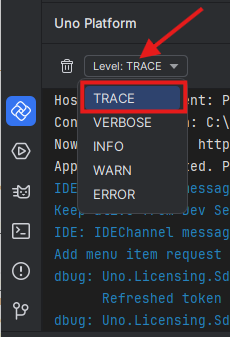
- The TCP port number used by the app to connect back to the IDE is located in the
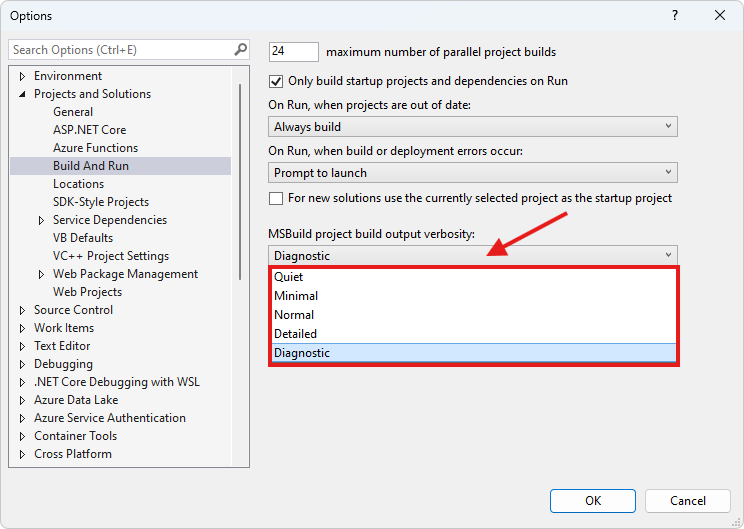
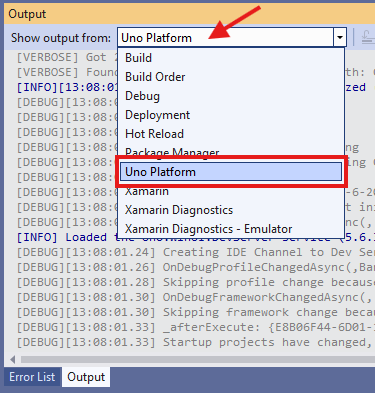
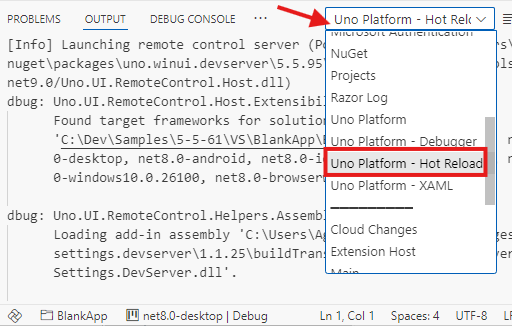
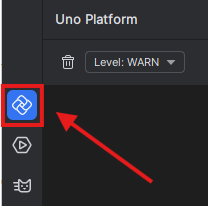
property of the [ProjectName].csproj.user file. If the port number does not match with the one found in the Uno Platform - Hot Reload output window, restart your IDE. - If the Dev Server does not start, ensure NuGet restore has completed successfully and Uno Platform packages are referenced by your project(s).

See also
- The Uno Platform MCPs — how to register, inspect, and uninstall Uno MCP entries across supported agents.
- Diagnostics (disco) — inspect your environment and tool resolution.
- Supported agents and features — per-agent capability summary.
- Per-agent setup guides: Claude Code, Codex CLI, Cursor, GitHub Copilot CLI, Google Antigravity.
- Troubleshooting AI Agents.