Getting Started with Uno Platform Studio App
This guide walks you through creating your first app with Uno Platform Studio App. There is nothing to install upfront: open it in your browser and start from a prompt.
When you want to continue working locally, export your app and follow the Uno Platform Get Started guide to set up Uno Platform in your IDE of choice.
First Launch
The Projects page is the main entry point for starting work.
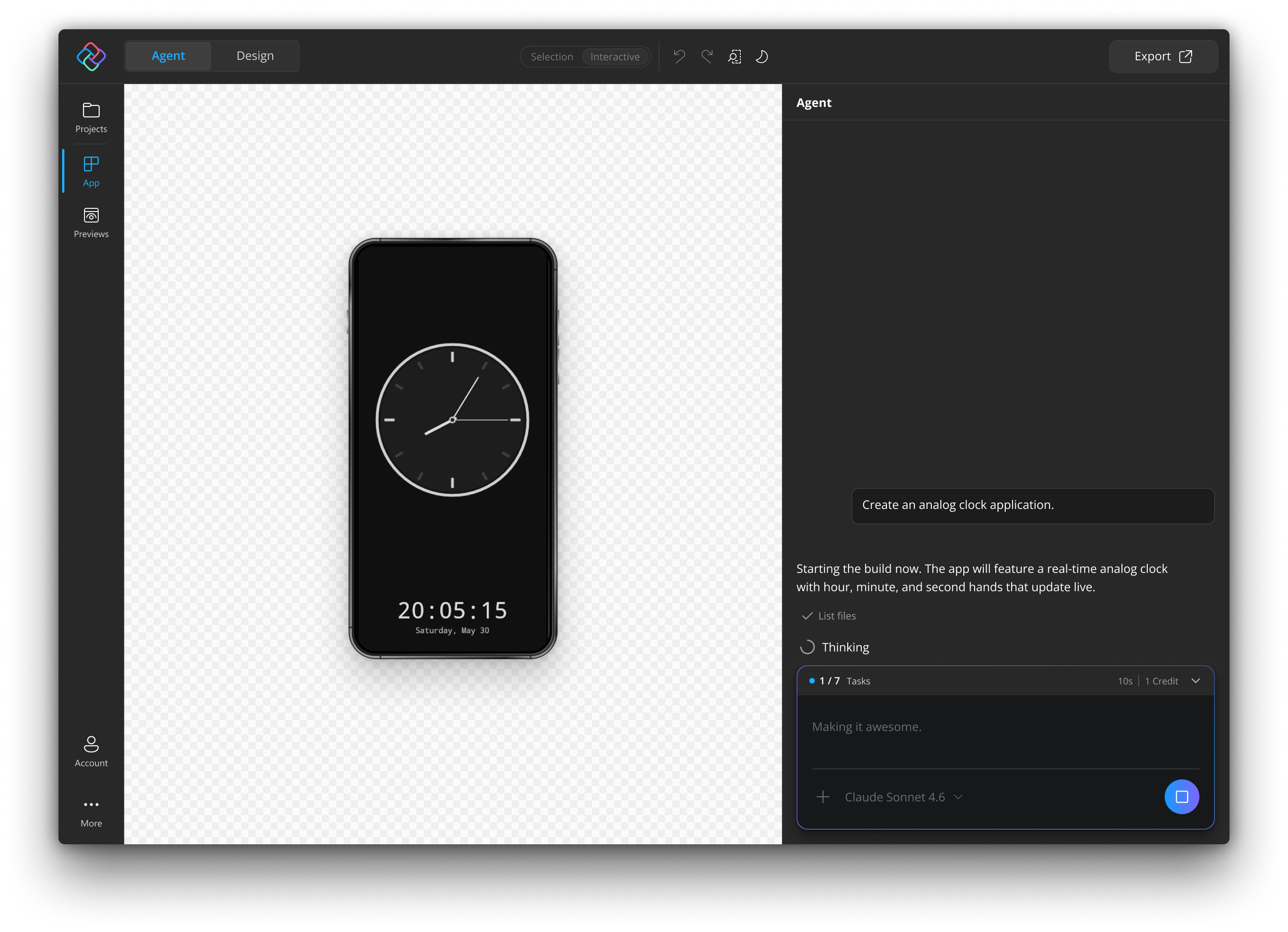
Use New to create a new app with a prompt.
- Enter a prompt describing the app you want to build, then submit the prompt.
- You can see the process as it happens in the Agent activity panel and view the app as it builds thanks to Hot Reload.
- When the app finishes building, you will see a recap summarizing what was generated.
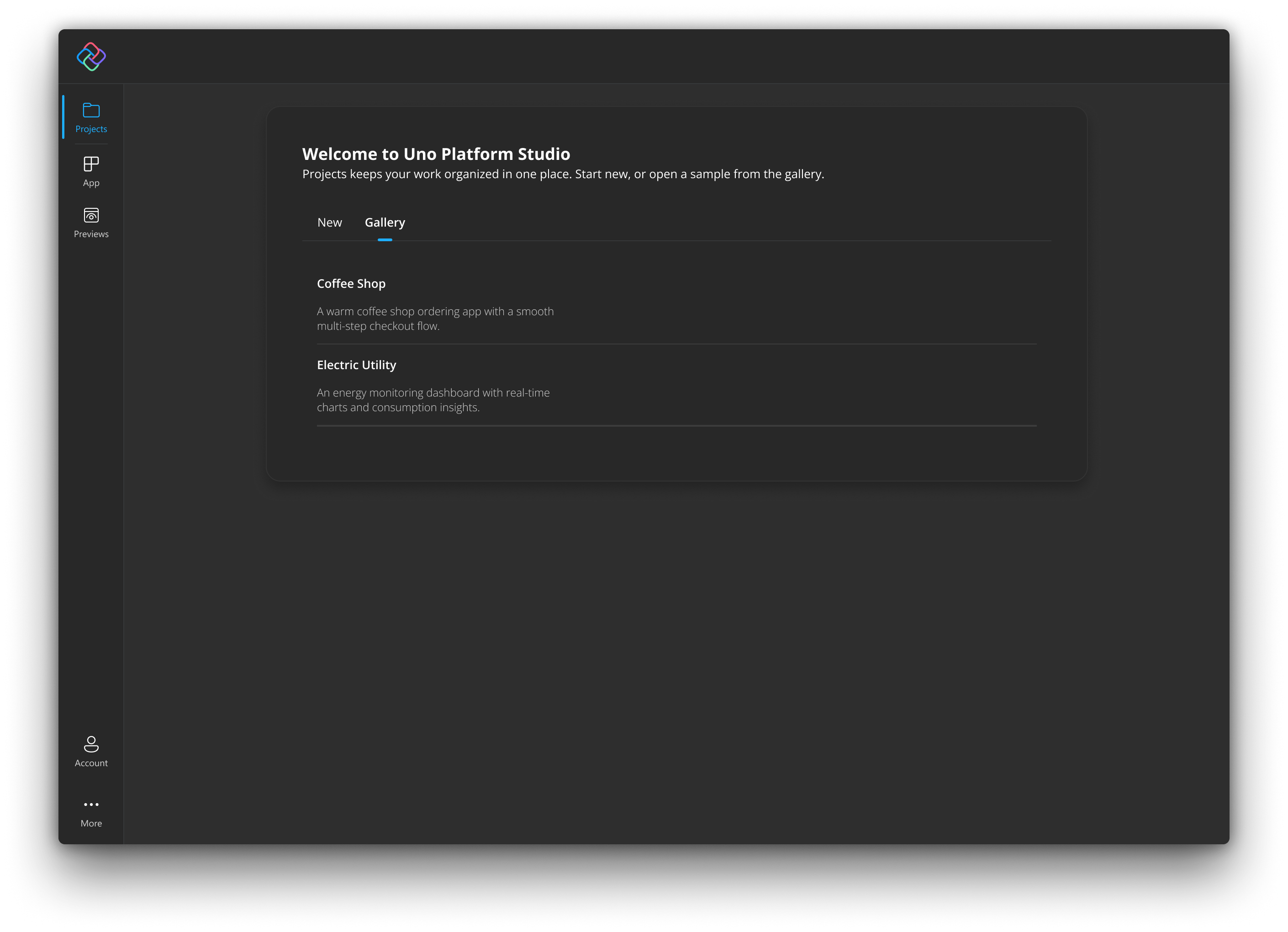
Gallery
Uno Platform Studio App also offers a curated set of samples of complete, working Uno Platform applications you can open, explore, and customize immediately.
When you open a sample, Uno Platform Studio App:
- Clones the sample project into a fresh workspace.
- Builds and starts the live preview.
- Opens the conversation panel so you can immediately start customizing.
The sample is your own copy; any changes you make do not affect the original.
The Uno Platform Studio App Interface
Uno Platform Studio App uses a shell around the app canvas to help you switch projects, open account details, export work, and reach support resources. This section covers the shell layout and the status colors you will see while working.
Navigation Pane
The navigation pane is the main way to move between shell areas.
- From Projects, you can start a new project from a prompt or browse sample apps from the Gallery.
- From App you can access the main workspace. This is where you work with the app canvas and Hot Design.
- From Previews you can view generated pages. Previews only appear in the navigation bar once the agent starts generating pages.
- From Account you can review your subscription details and credit information.
- From More you can access quick links and support resources.
Top Bar
When a project is loaded, the shell shows a top action bar inside the app area.

Export
Use Export to package the current project for use in a local IDE or source-control workflow. See Export and IDE Handoff for the full flow.
- The button is shown only when the workspace is active and the app content has loaded.
- While export is running, Uno Platform Studio App shows progress in place of the normal label.
More Menu
Use More for quick links and support resources.
- Documentation opens the Uno Platform documentation in your browser.
- Send feedback starts the feedback export flow.
- Community opens a submenu of community links:
- Discord opens the Uno Platform Discord community.
- YouTube opens the Uno Platform YouTube channel.
Status Indicators and Colors
Uno Platform Studio App uses color-coded status indicators to quickly communicate connection and runtime state.
| Color | Typical meaning | What to do |
|---|---|---|
| Green | Connected and healthy | Continue working normally |
| Yellow/Amber | Warning or degraded state | Review warnings and verify connectivity |
| Red | Error or disconnected state | Retry connection or restart the affected flow |
| Gray | Inactive, unknown, or not yet connected | Start session or trigger a connection check |
Conversation Panel & AI Agent
The conversation panel is the primary way to interact with the AI agent in Uno Platform Studio App. The agent understands natural language and translates your intent into working code.
Enter your prompt in the text box at the bottom of the conversation panel and press Enter (or click the send button). The agent responds with an explanation of what it is doing and applies changes to your project.
You can also add image files (PNG or JPEG) into the prompt panel to give the agent additional context.
Prompting Best Practices
Prompt quality strongly affects the app quality. Better prompts lead to better first results, fewer regeneration loops, and less cleanup after the app is created.
Good prompts:
- make the app goal explicit,
- describe the primary user,
- name the first few screens,
- define the key interactions, and
- constrain the visual direction enough to avoid generic output.
Strong prompts help the model make better decisions about navigation, data shape, layout hierarchy, and the amount of functionality to include in the first pass.
Examples
Better starting prompt
"Create a project planning app for small teams. Include a dashboard, a project list, and a task detail page. The dashboard should show active projects, overdue tasks, and team progress. Use a clean enterprise layout with clear hierarchy and simple status badges."
Better refinement prompt
"Keep the same structure, but make the dashboard denser, add a left rail with Projects, Tasks, and Reports, and show task status with color-coded chips. Do not add new screens."
Better editing prompt
"On the task detail page, add editable priority, due date, and assignee fields. Keep the layout responsive and preserve the existing navigation structure."
These examples work because they tell the model what to preserve, what to change, and what to avoid.
Export and IDE Handoff
Export lets you move from Uno Platform Studio App to your day-to-day IDE workflow without losing project fidelity.
Recommended Handoff Flow
- Complete a scaffold or design iteration in Uno Platform Studio App.
- Export the app from Uno Platform Studio App.
- Open the exported project in your preferred IDE.
- Restore dependencies and run a local build.
- Commit or continue development in your normal source workflow.
New to Uno Platform? Follow the Uno Platform Get Started guide to set up your Uno Platform environment and work in your IDE of choice.
Credits & Usage
Uno Platform Studio uses a credit-based model for AI features such as app generation, agent interactions, and MCP tool calls.
| Activity | Uses credits |
|---|---|
| Prompt-based app generation | Yes |
| Agent prompt and response cycles | Yes |
| Tool calls through AI workflows | Yes |
| Hot Design visual editing | No |
Actual credit usage can vary based on operation size, model usage, and response length.
Purchasing Credits
Additional credits can be purchased from your Uno Platform Studio account.