When migrating a WPF app to Uno Platform with Material Design theming, some ThemeResource keys from WinUI will compile, deploy, and launch, then render as a blank white page. No exception. No warning. Just nothing. This post covers seven keys the AI agent touched during the Text-Grab migration, where I left its choices alone, and the two places I overrode it after checking the docs.
I spent the better part of an afternoon last week staring at a blank white page. The app compiled, it deployed, it launched. And the settings page I was porting from the open-source Text-Grab WPF app rendered as nothing. No exception in the debugger. No red squiggly. No helpful warning in the Output window. Just a blank canvas where my UI should have been.
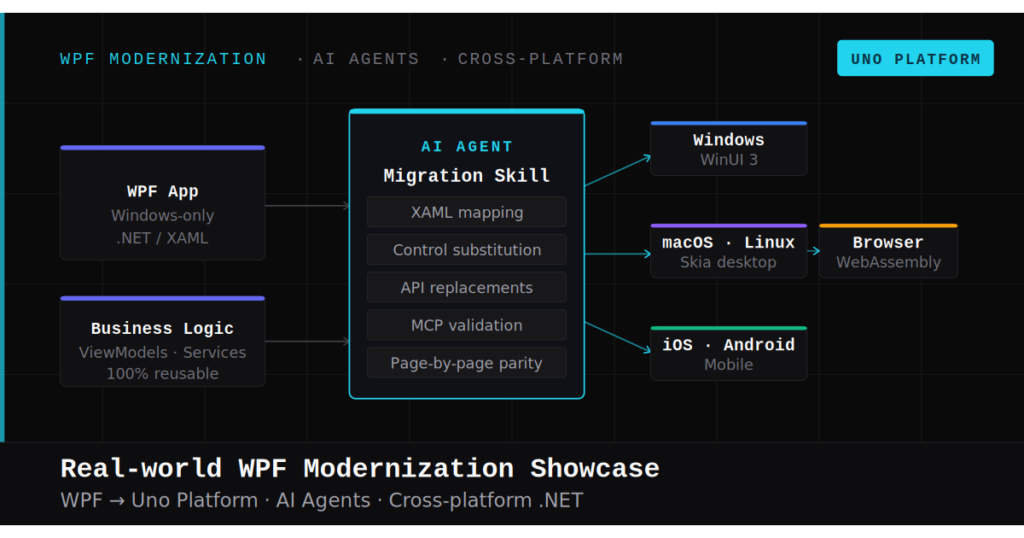
A detail worth being up front about: this migration was AI-assisted. An agent did most of the mechanical work (namespace rewrites, control substitutions, and a first pass at swapping WPF-UI theme keys for Uno Material ones). On the whole that saved me a lot of grind, but it's also where most of the blank pages came from. The agent is excellent at pattern-matching on names. It is not excellent at knowing that two keys with near-identical names can refer to text at radically different sizes, or that a migration-guide doc in its own scratchpad was slightly wrong about how brush resources get generated.
Catching those cases (by eyeballing the output, re-running the app on each platform, and cross-checking against the official Uno and Microsoft docs via their MCP servers) was where the human-in-the-loop earned its keep.
Why a Missing ThemeResource Can Just Render Nothing
ThemeResource lookups happen at runtime, not build time. That means XAML will happily compile even if the resource key does not exist in the active theme dictionary. You only find out when the page actually renders, and in my case that often meant a blank screen instead of a useful error. That detail matters in AI-assisted migration, because a compile-green app can still be visually broken in ways an agent will miss unless someone actually runs it and checks the UI.
The first thing worth understanding (because it took me a while to accept) is that XAML resource resolution is a runtime operation. The parser does not validate your ThemeResource keys against the active theme dictionary at build time. Whatever you type between the braces will compile.
At runtime, the behavior varies. Sometimes the XAML loader throws a XamlParseException and you get a stack trace to chase. But on the targets I was working with, a missing brush frequently resolved to null on Background, Foreground, or a text-style setter, and the control quietly rendered nothing.
A build-green, silently-blank page is exactly the kind of failure that slips past an agent doing a "does it compile?" verification pass. The agent ticks the box and moves on; the page looks broken to a human the first time it's actually run. If a page is blank and there's no error to chase, assume a missing resource key before assuming anything else.
The 7 Keys That Cost Me Time
Here are the seven keys that showed up in the Text-Grab port, in roughly the order I hit them.
1CardBackgroundFillColorDefaultBrush
This was the first one, and it was everywhere in the WPF source. Text-Grab leans on WPF-UI (Wpf.Ui) heavily, and WPF-UI in turn leans on this brush for card-style containers. Uno Material does not define it.
<!-- Text-Grab WPF (ShortcutControl.xaml) -->
<Border Background="{ui:ThemeResource CardBackgroundFillColorDefaultBrush}"><Border Background="{ThemeResource SurfaceBrush}">The agent made the right call here. SurfaceBrush is the closest Material Design 3 equivalent for a neutral card-style background. It represents the primary surface color and responds correctly to light/dark theme changes. For more elevated cards, SurfaceVariantBrush can look better.
2SystemFillColorCautionBrush
Text-Grab used this for warning-level UI. The agent's first pass substituted TertiaryBrush, which is what its internal scratchpad doc said to do. This one I overrode after checking with the Uno MCP.
<!-- Agent chose TertiaryBrush (wrong semantic) -->
<Border Background="{ThemeResource TertiaryBrush}"><!-- Custom brush in the theme dictionary -->
<Border Background="{ThemeResource WarningBrush}">The agent's substitution wasn't random. TertiaryBrush is a warm accent in MD3, and visually it's close enough that the page looked fine. But the colors mean different things: Tertiary is just an accent, ErrorBrush is destructive/critical, and Warning is neither. Users read those colors differently. If you're shipping this to end users, take the half hour to define the brush.
3ApplicationPageBackgroundThemeBrush
The UWP-era page-background brush. Text-Grab inherited it via the WPF-UI templates. The agent swapped it to BackgroundBrush, which is correct.
<Page Background="{ThemeResource BackgroundBrush}">A detail I only figured out later: on most pages the agent just dropped the Background attribute entirely. Uno Material's MaterialTheme provides sensible defaults, and the app looked correct without an explicit key. When you do need to set it, BackgroundBrush is the right one.
4TitleLargeTextBlockStyle (the name-match trap)
This is the biggest mis-mapping I had to catch, and the clearest example of where an AI agent working from name similarity alone will confidently hand you the wrong answer.
<!-- Agent mapped by name: TitleLarge (22sp) -->
<TextBlock Style="{StaticResource TitleLarge}" Text="Page Title" /><!-- WinUI TitleLarge is 40pt = MD3 HeadlineLarge (32sp) -->
<TextBlock Style="{StaticResource HeadlineLarge}" Text="Page Title" />The trap: WinUI's TitleLargeTextBlockStyle is 40pt Semibold. MD3's TitleLarge is 22sp. The names match; the sizes do not. The agent mapped by name, and in Text-Grab specifically that actually worked (every place the style is used is a section heading, not a hero, so 22sp was visually right). But if I'd been migrating an app with genuine 40pt display text, the agent's name-match would have shipped a section heading in place of a hero.
Map by font size, not by name. For TitleLargeTextBlockStyle (40pt), the honest MD3 match is HeadlineLarge (32sp) or DisplaySmall (36sp), not TitleLarge. If you're using an agent for your migration, this is the single place I'd spot-check manually: pull up the Material 3 type scale next to the WinUI type ramp and walk every style swap.
5BodyTextBlockStyle
Same pattern, smaller stakes. The agent added the required size qualifier and landed on BodyMedium (14sp), which matched WinUI's Body (14pt) one-to-one. Kept. If your source UI runs heavier, BodyLarge is the next step up.
6SubtitleTextBlockStyle
The agent picked TitleMedium first; I nudged it toward TitleLarge after comparing against the MD3 scale. WinUI Subtitle is 20pt Semibold. MD3 TitleMedium is 16sp (too small), TitleLarge is 22sp (closest). In dense sections I did drop back to TitleMedium in a couple of places where the heading was crowding its surroundings. This is the key I'd flag for manual eyeballing regardless of how the agent maps it.
7CaptionTextBlockStyle
The agent picked LabelSmall (11sp); I widened it to LabelMedium (12sp) after comparing. WinUI Caption is 12pt. Both MD3 LabelMedium and BodySmall are 12sp, so either is a closer match than what the agent picked. For truly dense metadata rows I used LabelSmall deliberately, but pick by visual weight, not by name.
How Uno Material's Keys Actually Fit Together
Typography: {Category}{Size}
| Category | Sizes Available |
|---|---|
| Display | DisplayLarge, DisplayMedium, DisplaySmall |
| Headline | HeadlineLarge, HeadlineMedium, HeadlineSmall |
| Title | TitleLarge, TitleMedium, TitleSmall |
| Body | BodyLarge, BodyMedium, BodySmall |
| Label | LabelLarge, LabelMedium, LabelSmall |
Every combination is a valid style key. No suffixes. The agent had no trouble with the shape of this; it was knowing which row-and-column cell the WinUI keys land in that caused the slip-ups above.
Colors and Brushes: What the Agent Doc Said vs. What Is Actually True
The scratchpad migration doc the agent generated for Text-Grab said that brushes in ColorPaletteOverride.xaml are "auto-generated from Color keys." I believed that for a while. It's not wrong in spirit, but it's wrong in mechanism, and the difference matters the first time you try to add a custom color.
What actually happens: Uno Material ships a fixed set of SolidColorBrush resources in its theme dictionary (PrimaryBrush, SurfaceBrush, ErrorBrush, etc.). Each brush references a matching Color key. When you redefine one of those existing color keys in ColorPaletteOverride.xaml, the already-declared brush picks up the new color. That's the magic, and it's real. But it only works for keys Uno.Material already knows about.
<!-- PrimaryColor already has a PrimaryBrush pointing at it -->
<Color x:Key="PrimaryColor">#5946D2</Color><!-- This alone does NOT produce a MyAccentBrush -->
<Color x:Key="MyAccentColor">#FF8800</Color>
<!-- You still have to declare the brush -->
<SolidColorBrush x:Key="MyAccentBrush" Color="{StaticResource MyAccentColor}" />I only caught this by running the claim past the Uno docs MCP and actually reading how the Material theme dictionary is wired, rather than taking the agent's summary at face value.
Stick to the MD3 color keys Uno.Material already defines (the default palette on GitHub is the authoritative list). For anything outside that vocabulary, declare both a Color and a matching SolidColorBrush, and put them in ThemeDictionaries for Light/Dark/HighContrast.
The Mapping Table, With Name/Size Mismatches Called Out
These are starting points, not strict 1:1 equivalents. The Uno Material migration guide is explicit that there is no guaranteed font-size/usage mapping between WinUI and MD3. The agent's first pass is in the middle column; my corrections, where I made any, are in the notes.
| WinUI / WPF-UI Key | Agent → Final | Type | Notes |
|---|---|---|---|
| CardBackgroundFillColorDefaultBrush | SurfaceBrush ✓ | Brush | Kept; SurfaceVariantBrush sometimes fit better for elevated cards |
| SystemFillColorCautionBrush | TertiaryBrush → custom WarningBrush | Brush | Overrode; Tertiary/Error carry different semantic meaning |
| ApplicationPageBackgroundThemeBrush | BackgroundBrush ✓ (or omitted) | Brush | Kept; most pages let MaterialTheme defaults through |
| SystemFillColorCriticalBrush | ErrorBrush ✓ | Brush | Direct MD3 equivalent |
| SystemFillColorSuccessBrush | PrimaryBrush → custom SuccessBrush | Brush | Overrode; Primary is brand color, not a success state |
| TitleLargeTextBlockStyle (40pt) | TitleLarge → HeadlineLarge (for hero) | Style | Agent mapped by name; MD3 TitleLarge is 22sp, not 40pt |
| TitleTextBlockStyle (28pt) | TitleLarge → HeadlineSmall | Style | Name-match trap again; 24sp is closer to 28pt |
| SubtitleTextBlockStyle (20pt) | TitleMedium → TitleLarge | Style | Overrode after MD3 size check |
| BodyLargeTextBlockStyle (18pt) | BodyLarge ✓ | Style | Kept; 16sp is acceptably close |
| BodyTextBlockStyle (14pt) | BodyMedium ✓ | Style | Kept; 14sp one-to-one match |
| CaptionTextBlockStyle (12pt) | LabelSmall → LabelMedium | Style | Overrode; 12sp matches, 11sp is a step smaller |
| BaseTextBlockStyle (14pt Semi) | BodyLarge → TitleSmall | Style | Overrode; TitleSmall is the closest Semibold 14sp |
If your WPF source references HeaderTextBlockStyle, note that it's a UWP-era key and isn't part of the current WinUI type ramp. Treat it as legacy and pick an MD3 replacement by font size.
How I Debugged the Blank Pages
The agent did most of this work on its own. When its output broke a page, it followed the same loop I would have; it just did it with the Uno App MCP tools instead of my keyboard:
- Build, then launch.
uno_app_startbrings the app up against the freshly-written XAML, anduno_app_get_runtime_infoconfirms it's actually running. A blank page is not the same as a crash. - Screenshot the symptom.
uno_app_get_screenshotcaptures what the user would see. A screenshot is literal evidence; a build log that says "success" is not. - Inspect the visual tree.
uno_app_visualtree_snapshotreturns an XML representation of what the framework actually instantiated, with a handle for every element. An element that failed aThemeResourcelookup still shows up in the tree; it just doesn't render. That gap between "element is there" and "nothing on screen" is the fingerprint. Cross-reference the element's handle back to the XAML and the bad key is usually obvious within a few seconds. - Fix and verify. Patch the XAML, call
uno_app_startagain, loop back to the screenshot and the tree snapshot. Usually one iteration is all it takes.
That's the loop. Agent writes, agent verifies, agent fixes. Because the MCP tools produce structured output, the agent can reason about what it's looking at instead of squinting at a blank screen.
When the MCP loop isn't available (you're working outside an agent setup, the dev server isn't running, or you just want to sanity-check something fast), binary-searching the XAML is the fallback:
- Comment out the bottom half of the page's XAML.
- Run the app. If the page renders, the problem is in the commented half.
- Uncomment half of what you just commented.
- Repeat until you isolate the element with the bad resource reference.
Four or five iterations usually does it. A single unsupported brush reference on a Border inside a StackPanel is enough to blank out an entire settings page, and bisection finds that element fast even when the agent has just rewritten five hundred lines of XAML.
A few other things that helped, either way:
- Keep one eye on the Output window. You occasionally see XAML parsing warnings hinting at the missing resource. Don't count on it, but check.
- Start from a page that renders. Copy elements from the broken page in one at a time. Stop at the one that breaks rendering. That's usually the key the agent got wrong.
- Grep your XAML for ThemeResource and StaticResource after each agent pass. Every reference is a potential silent failure. Proactive auditing beats reactive hunting.
# Every ThemeResource reference in the migrated project
grep -rn "ThemeResource" --include="*.xaml" ./src/What I'd Do Differently Next Time
- Catalog every resource key first, by hand. A simple grep on the WPF source gives you the full list before the agent touches anything. That list becomes your scorecard.
- Give the agent the Uno docs MCP and the Microsoft Learn MCP up front. Every mapping decision should be grounded in the current docs, not in the agent's priors about what keys "usually" correspond to. In my experience that alone eliminates most of the name-match traps.
- Spot-check typography mappings manually. Walk every typography swap against the MD3 type scale and the WinUI type ramp. It's where the agent is most likely to be confidently wrong.
- Test page by page, not at the end. Silent-blank failures find you fastest when the context is still fresh. A green build is not a verified page.
What's Next
This is part of a series on migrating WPF apps to Uno Platform with AI agents doing the mechanical lifting. If you're still evaluating the path, the comparison of WPF modernization frameworks and the complete namespace and control map are where I'd start.
Other posts in the series dig into control-by-control mapping from WPF-UI to WinUI, cross-platform API abstraction with dependency injection, and adapting a test suite for Uno Platform, all with the same AI-assisted-but-human-verified cadence.
If you hit a resource key I didn't cover here, or an agent made a call you had to override, I'd love to hear about it.
- Uno Material Colors Reference →
- Uno Material Migration Guide (Typography) →
- Uno.Themes Default Color Palette (GitHub) →
- Material 3 Type Scale Tokens →
- WinUI Type Ramp (Microsoft Learn) →
- XAML Theme Resources Guidance →
- Uno Platform MCP Servers →
- Migrate Your First WPF Screen with AI Agents →
- WPF to WinUI: Complete Namespace and Control Map →
- 5 Best Frameworks for WPF Modernization in 2026 →
- Why Teams Choose Uno Platform →
- XAML UI Components Reference →