
Organizing XAML code at scale requires a structured approach to folder organization, ResourceDictionary management, and platform-specific markup. In cross-platform Uno Platform projects, developers should leverage the single-project structure, use Uno.XamlMerge.Task for dictionary consolidation, and apply conditional XAML prefixes to maintain clean, performant codebases across Windows, iOS, Android, and WebAssembly.
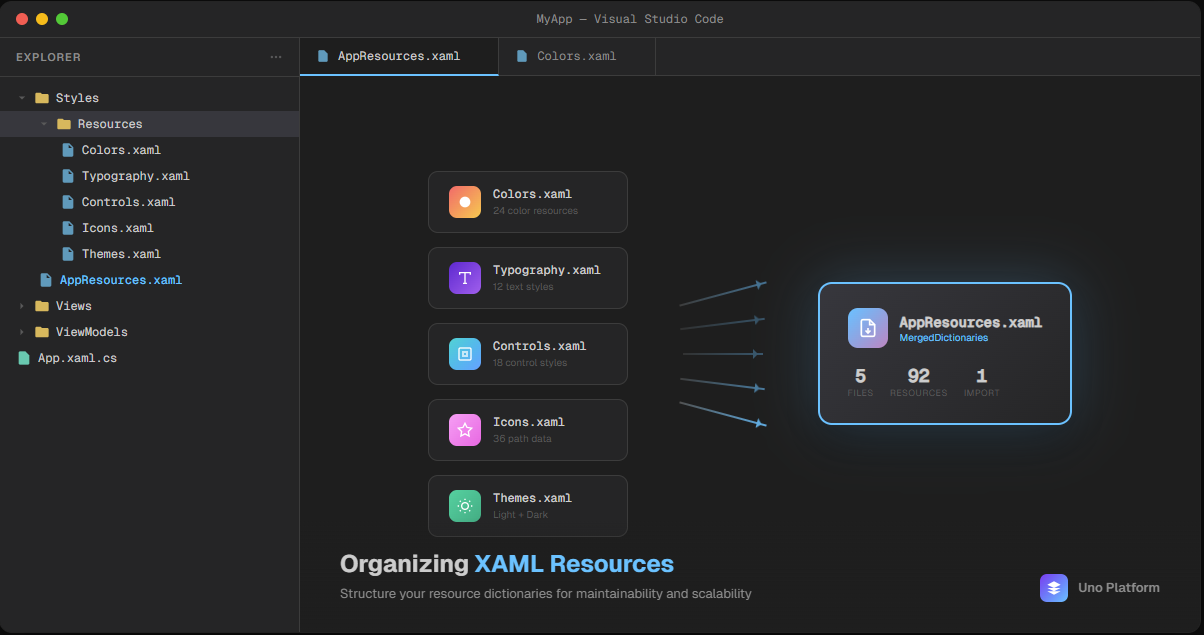
Key Takeaways:
- Use Uno Platform’s single-project structure with a Platforms folder for target-specific code
- Merge ResourceDictionaries at build time with Uno.XamlMerge.Task to avoid runtime performance hits
- Apply platform-specific XAML prefixes (win, android, ios, wasm, skia) for conditional markup
- Define shared resources at the application level, platform-specific resources locally
- Establish consistent naming conventions early to prevent style conflicts at scale
Who this is for:
Who this is for: .NET developers building cross-platform applications with Uno Platform who need to organize XAML code for maintainability and performance as their projects grow.
Why XAML Organization Matters in Large Projects
As cross-platform applications grow, poor XAML organization creates compounding problems. Style conflicts emerge when multiple ResourceDictionaries define similar resources. Build times increase as the compiler processes scattered, unoptimized files. Most critically, runtime performance suffers from inefficient resource lookups.
According to the Uno.XamlMerge.Task documentation, “ResourceDictionary resolution is performed through a graph traversal of MergedDictionaries, which generally implies that a worse case resolution can require as many lookups as there are dictionaries.” This means every nested dictionary you add increases the potential lookup time for every resource reference in your application.
The runtime process of searching through nested MergedDictionaries to resolve resource references. More dictionaries mean more lookups, impacting application performance.
Microsoft’s ResourceDictionary documentation recommends defining resources at the appropriate scope to optimize this lookup behavior. Understanding these fundamentals is essential before architecting your XAML organization strategy.
Effective XAML organization addresses all three concerns: it prevents conflicts through clear naming and scoping, reduces build overhead through consolidation, and improves runtime performance through optimized resource access.
Structuring Your Uno Platform Project
The Uno Platform solution structure guide explains that a single project “supports Mobile (iOS/Android), WebAssembly, Desktop (macOS, Linux X11/Framebuffer, Windows 7+), and Windows App SDK targets.” This single-project approach simplifies XAML organization compared to legacy multi-project structures.
A well-organized Uno Platform project follows this folder hierarchy:
MyApp/
  Platforms/
    Android/
    iOS/
    Desktop/
    WebAssembly/
  Styles/
    Colors.xaml
    Controls.xaml
    Converters.xaml
    Themes/
      Light.xaml
      Dark.xaml
  Pages/
    Home/
    Settings/
    Profile/
  Controls/
    Shared/
  App.xaml
  MainPage.xaml
The Platforms folder contains target-specific code and resources that vary by platform. The Styles folder centralizes your ResourceDictionaries, making them easy to locate and maintain. Organizing pages by feature (Home, Settings, Profile) rather than by type keeps related XAML files together.
Your App.xaml file serves as the application-level resource container. Resources defined here are accessible throughout the application, making it the right place for colors, brushes, converters, and styles used across multiple pages.
This structure scales well because it separates concerns clearly: platform-specific code stays isolated, shared styles remain centralized, and feature-related files stay grouped together.
Organizing ResourceDictionaries for Performance
While splitting resources into separate files improves maintainability, it can hurt runtime performance. The Uno.XamlMerge.Task “is generally used to allow for separate resource dictionary authoring (which makes them easier to load and read) to avoid impacting resources lookup runtime performance.”
This build-time tool merges multiple XAML dictionaries into a single file, giving you the best of both worlds: organized source files during development, consolidated resources at runtime.
To configure XamlMerge in your project, add the following to your .csproj file:
<PropertyGroup>
  <_Uno_XamlMerge_Task_Version>1.0.0</_Uno_XamlMerge_Task_Version>
</PropertyGroup>

<ItemGroup>
  <PackageReference Include="Uno.XamlMerge.Task" Version="$(_Uno_XamlMerge_Task_Version)" />
</ItemGroup>

<ItemGroup>
  <XamlMergeInput Include="Styles\**\*.xaml" Exclude="Styles\Generic.xaml" />
</ItemGroup>

<PropertyGroup>
  <XamlMergeOutputFile>Themes\Generic.xaml</XamlMergeOutputFile>
</PropertyGroup>
This configuration takes all XAML files from your Styles folder and merges them into a single Generic.xaml file at build time. Your source files remain separate and organized, but the compiled application benefits from consolidated resource lookup.
For larger projects with distinct feature areas, you can create multiple merged outputs:
<ItemGroup>
  <XamlMergeOutputFiles Include="Generated\CoreStyles.xaml" />
  <XamlMergeOutputFiles Include="Generated\FeatureStyles.xaml" />

  <XamlMergeInput Include="Styles\Core\**\*.xaml" MergeFile="CoreStyles.xaml" />
  <XamlMergeInput Include="Styles\Features\**\*.xaml" MergeFile="FeatureStyles.xaml" />
</ItemGroup>
This approach is particularly useful when working with IL Linking, as it allows selective inclusion of style sets based on which features your application uses.
Platform-Specific XAML Patterns
Cross-platform applications often need different XAML behavior on different platforms. As described in the platform-specific XAML documentation, “There are two ways to restrict code or XAML markup to be used only on a specific platform: Use conditionals within a shared file. Place the code in a file that is only included in the desired target framework.”
Uno Platform provides XAML conditional prefixes that enable platform-specific markup within shared files:
<Page x:Class="MyApp.MainPage"
   xmlns="http://schemas.microsoft.com/winfx/2006/xaml/presentation"
   xmlns:x="http://schemas.microsoft.com/winfx/2006/xaml"
   xmlns:android="http://uno.ui/android"
   xmlns:ios="http://uno.ui/ios"
   xmlns:wasm="http://uno.ui/wasm"
   xmlns:win="http://schemas.microsoft.com/winfx/2006/xaml/presentation"
   xmlns:not_android="http://schemas.microsoft.com/winfx/2006/xaml/presentation"
   mc:Ignorable="d android ios wasm">

  <StackPanel Margin="20">
    <TextBlock Text="Welcome"
         win:FontSize="24"
         android:FontSize="20"
         ios:FontSize="22" />

    <ios:Button Content="iOS-Only Button" />

    <TextBlock android:Text="Shown on Android"
          not_android:Text="Shown everywhere else" />
  </StackPanel>
</Page>
The available prefixes cover all major platforms:
| Prefix | Included Platforms | Excluded Platforms |
|---|---|---|
win |
Windows | Android, iOS, WebAssembly, macOS, Skia |
android |
Android | Windows, iOS, WebAssembly, macOS, Skia |
ios |
iOS | Windows, Android, WebAssembly, macOS, Skia |
wasm |
WebAssembly | Windows, Android, iOS, macOS, Skia |
skia |
Skia targets | Windows, Android, iOS, WebAssembly, macOS |
not_win |
All except Windows | Windows |
not_android |
All except Android | Android |
not_ios |
All except iOS | iOS |
When to use conditionals versus separate files: Use conditional prefixes for small differences (font sizes, margins, colors). Use separate files when entire controls or layouts differ significantly between platforms. The conditional approach keeps related markup together, while separate files provide cleaner separation for major platform divergences.
Common Pitfalls and How to Avoid Them
While official documentation covers the tools, it does not address the organizational mistakes developers commonly make. Based on community experience and real-world projects, these pitfalls frequently cause problems at scale.
Pitfall 1: Overusing MergedDictionaries Without Consolidation
What goes wrong: Developers create many small ResourceDictionary files and reference them all via MergedDictionaries, causing deep nesting.
Why it happens: It feels organized during development, and the performance impact is not obvious until the application scales.
Fix: Use Uno.XamlMerge.Task to consolidate dictionaries at build time. Keep your source files separate for maintainability, but let the build process merge them.
Pitfall 2: Defining Resources at the Wrong Scope
What goes wrong: App-wide resources (like colors and converters) get defined in page-level dictionaries, causing duplication and inconsistency.
Why it happens: Developers add resources where they first need them, rather than considering where they should live.
Fix: Define truly shared resources in App.xaml. Use page-level resources only for resources specific to that page. If you find yourself copying a resource to a second page, move it to the application level.
Pitfall 3: Inconsistent Naming Conventions
What goes wrong: Resources named ButtonStyle, MyButtonStyle, PrimaryButton, and btnPrimary all coexist, making discovery impossible.
Why it happens: Multiple developers work on the project without agreed conventions, or conventions erode over time.
Fix: Establish naming conventions early. A pattern like {Scope}_{Element}_{Variant} (e.g., App_Button_Primary, Settings_TextBox_Search) provides consistency and discoverability.
Pitfall 4: Ignoring Platform-Specific Needs
What goes wrong: XAML assumes identical behavior across platforms, leading to visual inconsistencies or runtime issues on specific targets.
Why it happens: Developers test primarily on one platform and assume cross-platform compatibility.
Fix: Use conditional XAML prefixes proactively. Test on multiple platforms early and often. When you discover platform differences, encode them explicitly rather than working around them.
Frequently Asked Questions
Styles
folder, and use build-time merging to consolidate ResourceDictionaries. Establish naming conventions early and enforce them through code review.
Styles
folder at the project root containing
Colors.xaml,
Controls.xaml,
and a
Themes
subfolder. Pages should be organized by feature rather than type. Platform-specific XAML belongs in the
Platforms
folder. App.xaml
serves as the root for application-wide resources, while page-level dictionaries handle page-specific needs.
Uno.XamlMerge.Task
to merge multiple dictionary files into consolidated outputs, reducing runtime lookup overhead. Define resources at the appropriate scope: application-level for shared resources, page-level for page-specific resources. Avoid deep nesting of
MergedDictionaries,
and establish clear ownership for each dictionary file.
 Subscribe to Our Blog
 Subscribe via RSS
 Back to Top