How we used MCPs, prompts, and agentic workflows to go from concept to cross-platform 3D visualization in hours, not days.
Start with a sentence. End with a running app. Not a mock. Not a gist. An app.
That’s what we did building an interactive Fibonacci sphere visualizer with Uno Platform Studio. The AI agents and MCP servers handled the scaffolding. We steered the architecture, validated the output, and iterated fast.
This post uses the Fibonacci sphere as a practical demo of an AI-assisted dev loop that speeds up production without giving up control. We’ll cover setup, SkiaSharp rendering, and land on a working cross-platform implementation you can reuse.
AI-assisted development is a force multiplier when you already know the outcome you’re aiming for. It buys you speed on the busywork so you can spend more time on the parts that matter - critical thinking, design, and actually getting creative.
What We're Building
A Fibonacci sphere is just a clean way to place points evenly on a sphere using the golden angle.
The fun part is what we layer on top: point picking, a subtle wobble, motion trails, and a speed control so the whole thing feels alive instead of static.
Part 1: Setting Up with Uno Platform Studio
Prerequisites
Before you start, install Visual Studio 2022/2026 (or VS Code + C# Dev Kit), the .NET 9 or 10 SDK, the Uno Platform extension, and an MCP-enabled agent (Claude Code/Desktop, or any IDE that supports MCP).
This tutorial uses Claude Code for demonstration, but the workflow isn't locked to any specific tool. You can replicate this approach with VS Code + Copilot, Cursor, Visual Studio + AI Assistant, Codex, or any IDE with MCP support. The patterns and prompts work across LLMs—adapt them to your preferred setup.
Creating the Project
You have two paths to get started: the conversational approach or the visual wizard.
Option 1: Prompt-Based Setup
Open Claude Code (or your preferred MCP-enabled IDE) and start by initializing your servers. The exact phrasing doesn’t matter much—I typically go with:
Initialize uno and app mcp
Once you get confirmation that the servers are running, you’re connected to Uno Platform’s tooling and ready to scaffold.
Create a new project by typing /mcp.uno:new or simply /new if registered) and press Enter. Claude will prompt you for configuration details.
Keep it simple:
					Create an Uno Platform project targeting desktop and Android,
name it FibonacciSphere, use MVVM and SkiaSharp rendering.
Within seconds, you’ll have a fully configured solution with the correct target frameworks, NuGet packages, and project structure.
Option 2: Wizard-Based Setup
You can also use the Uno Platform Wizard to configure your project visually. Launch it from Visual Studio or use the online wizard for VS Code, from there you can configure and intialize your solution.
Both paths get you to the same place, choose whichever fits your style.
Part 2: The AI-Assisted Development Flow
Here’s where Uno Platform’s integration with AI agents transforms the development experience.
Understanding Uno Platform's MCPs
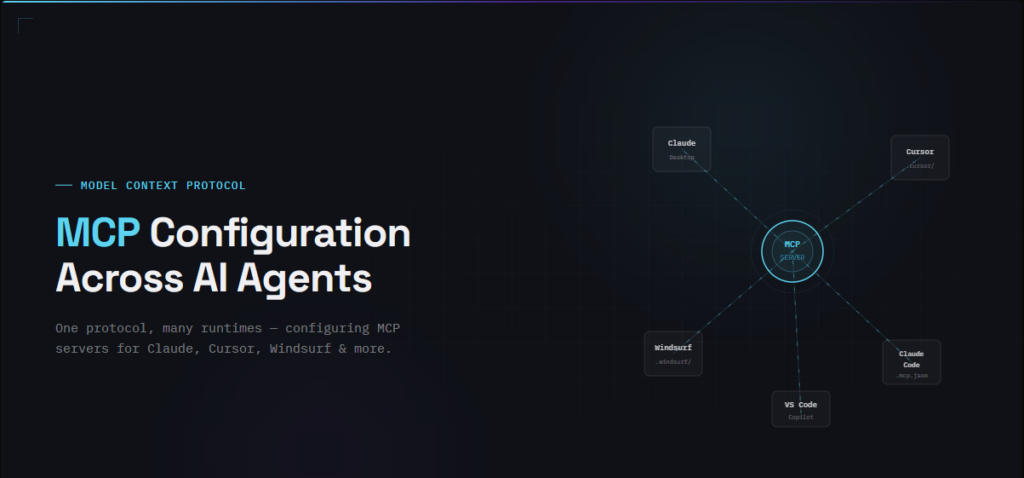
Uno Platform provides two MCP (Model Context Protocol) servers that give AI agents the context and capabilities they need to build cross-platform .NET apps effectively.
Uno Platform Remote MCP
This is a publicly hosted server that connects your agent to Uno Platform’s knowledge base and development patterns. It provides:
- Documentation tools –
uno_platform_docs_searchanduno_platform_docs_fetchlet agents search and retrieve relevant documentation on the fly - Development primers –
uno_platform_agent_rules_initanduno_platform_usage_rules_initteach agents how to interact with Uno Platform apps and use APIs correctly
The Remote MCP also registers predefined prompts in supported agents:
/new– Creates a new Uno Platform app with best practices baked in/init– Primes your current chat with Uno’s conventions (useful when adding features to an existing app)
Uno Platform Local App MCP
This is where things get interesting. The Local App MCP runs on your machine and gives agents the ability to interact with your running application—clicking, typing, taking screenshots, and inspecting the visual tree.
Think of it as giving your AI agent eyes and hands. It can validate assumptions, verify that generated code actually works, and debug issues by seeing what’s on screen.
uno_app_get_screenshot, uno_app_visualtree_snapshot, uno_app_pointer_click, uno_app_type_text, and uno_app_get_runtime_info. This feedback loop is what makes agentic development feel different—the agent doesn't just generate code and hope, it can run the app, see the result, and iterate.
The Prompt That Started It All
Instead of manually scaffolding every class, we started with this single prompt:
					Build an interactive Fibonacci sphere in C#/XAML for Uno Platform
using SkiaSharp. Points distributed via golden angle algorithm,
rendered with manual 3D-to-2D projection. Include a control panel
with sliders for: rotation speed, wobble (amplitude + frequency
with per-point phase offset), point size with depth scaling, and
trail length with opacity fade. Support hover highlighting, click
selection, and drag-to-rotate.
From this single prompt, the agent:
- Searched Uno Platform docs to understand SkiaSharp integration patterns
- Primed itself with Uno’s API conventions using the rules tools
- Created the project structure with appropriate separation of concerns
- Generated the mathematical algorithms for Fibonacci distribution
- Scaffolded the MVVM architecture with proper bindings
- Wrote the SkiaSharp rendering code with 3D projection
Working with the Agent
The key to effective AI-assisted development is iteration. After the initial scaffold, we refined through conversation:
Us: “The wobble effect feels too uniform. Can you add more variation?”
Agent: Takes a screenshot, analyzes the motion, then updates the code with a secondary wobble frequency and per-point amplitude randomization.
Us: “The trails are causing performance issues at 500+ points.”
Agent: Inspects the visual tree, identifies the bottleneck, implements trail pooling and reduces history when point count exceeds 300.
This conversational refinement backed by the agent’s ability to actually see and interact with the running app is faster than traditional development because the feedback loop is immediate and contextual.
Part 3: Core Implementation
The Fibonacci Distribution Algorithm
The golden angle (≈137.5°) ensures no two points align vertically, creating the characteristic spiral pattern seen in nature.
					public static class FibonacciSphere
{
    public static List<Vector3> GeneratePoints(int count)
    {
        var points = new List<Vector3>(count);
        float goldenRatio = (1 + MathF.Sqrt(5)) / 2;
        float goldenAngle = 2 * MathF.PI / (goldenRatio * goldenRatio);

        for (int i = 0; i < count; i++)
        {
            // Y coordinate: evenly distributed from +1 to -1
            float y = 1 - (2f * i / (count - 1));

            // Radius at this Y slice
            float radius = MathF.Sqrt(1 - y * y);

            // Angle based on golden ratio
            float theta = goldenAngle * i;

            points.Add(new Vector3(
                MathF.Cos(theta) * radius,
                y,
                MathF.Sin(theta) * radius
            ));
        }

        return points;
    }
}
The Wobble Effect
The dual-frequency approach creates organic, non-repetitive motion that feels natural rather than mechanical.
					public void UpdateWobble(float time, float amplitude, float frequency)
{
    foreach (var point in _points)
    {
        // Primary wobble
        float wobble1 = MathF.Sin(time * frequency + point.WobblePhase);

        // Secondary wobble for variation
        float wobble2 = MathF.Sin(time * frequency * 0.7f + point.WobblePhase * 1.3f);

        float totalWobble = (wobble1 * 0.7f + wobble2 * 0.3f)
                          * amplitude * point.WobbleAmplitude;

        // Apply radial displacement
        point.CurrentPosition = point.BasePosition * (1 + totalWobble);
    }
}
Part 4: The XAML Interface
The control panel uses standard Uno Platform controls with data binding to the ViewModel.
					<Grid ColumnDefinitions="*, 320" Background="#0a0a0f">

    <!-- Render Surface -->
<Grid ColumnDefinitions="*, 320" Background="#0a0a0f">

    <!-- Render Surface -->
    <skia:SKXamlCanvas x:Name="Canvas"
                       PaintSurface="OnPaintSurface"
                       PointerPressed="OnPointerPressed"
                       PointerMoved="OnPointerMoved"/>

    <!-- Control Panel -->
    <Border Grid.Column="1" Background="#12121a">
        <StackPanel Padding="24" Spacing="24">

            <TextBlock Text="WOBBLE" FontWeight="SemiBold"/>
            <Slider Minimum="0" Maximum="0.3"
                    Value="{x:Bind ViewModel.WobbleAmplitude, Mode=TwoWay}"/>

        </StackPanel>
    </Border>
</Grid>/>

    <!-- Control Panel -->
    <Border Grid.Column="1" Background="#12121a">
        <StackPanel Padding="24" Spacing="24">

            <TextBlock Text="WOBBLE" FontWeight="SemiBold"/>
            <Slider Minimum="0" Maximum="0.3"
                    Value="{x:Bind ViewModel.WobbleAmplitude, Mode=TwoWay}"/>

        </StackPanel>
    </Border>
</Grid>
Lessons Learned: AI-Assisted Development
Performance tuning, visual polish (colors and timing), and platform-specific quirks still benefit from developer experience. The agent suggests optimizations, but profiling is manual.
At the end of this, the Fibonacci sphere is almost the least interesting part. The interesting part is the loop: describe the outcome, let the agent scaffold then you review, iterate and correct.
MCPs make that loop practical in Uno Platform because the agent isn’t guessing in a void – it can use your tooling and your docs. The developer job shifts from “write every line” to “direct, verify, and polish.”
That’s amplification, not automation.
Next Steps
Get the complete source code and start experimenting with your own variations.
 Subscribe to Our Blog
 Subscribe via RSS
 Back to Top