Uno MCP gives your AI agent access to up-to-date Uno Platform documentation and conventions. Use it when planning features and scaffolding code.
App MCP connects to your running application. Use it to verify that generated code actually works at runtime.
Together, they close the gap between "AI suggested this" and "this is verified."
Is this you?
You already know how to build cross-platform apps with Uno Platform or other cross-platform .NET technologies, past and present. Now you’re experimenting with AI—whether it’s agents, skills, MCPs, or whatever form it shows up in this week—and you’re trying to turn it into a workflow you can actually trust.
That’s where Uno Platform MCPs come in. They’re part of Uno Platform Studio, and they give your AI agents two things they usually lack:
— Current Uno knowledge (docs, conventions, best practices)
— Runtime truth (what your app actually rendered and did)
Knowing when to use each MCP is the difference between “AI suggested this” and “this is verified.” And once you feel that loop click, it brings back that early-days spark: shipping faster because you’ve got feedback you can rely on.
Two MCPs, Two Roles
Uno Platform provides two MCP servers. They do different jobs. Understanding which one to reach for, and when, is the whole mental model
Uno MCP (Remote)
https://mcp.platform.uno/v1.-
—
uno_platform_docs_search— searches Uno Platform docs -
—
uno_platform_docs_fetch— retrieves full documentation pages -
—
uno_platform_agent_rules_init— primes with development rules -
—
uno_platform_usage_rules_init— primes with API best practices
Built-in prompts: /new (scaffold new app), /init (prime existing session)
App MCP (Local)
dotnet dnx -y uno.devserver --mcp-app. It connects to your running application. If you’re using VS Code or Visual Studio with the Uno extension, it’s automatically registered.-
—
uno_app_get_runtime_info— app PID, OS, platform details -
—
uno_app_get_screenshot— captures what the app looks like right now -
—
uno_app_visualtree_snapshot— live visual tree dump -
—
uno_app_pointer_click— clicks at X,Y coordinates -
—
uno_app_key_press/uno_app_type_text— keyboard input -
—
uno_app_element_peer_default_action— triggers automation peer actions
Pro license adds: uno_app_get_element_datacontext, uno_app_element_peer_action
When to Use Which
| "I want to..." | MCP to use |
|---|---|
| Plan a new feature | Uno MCP |
| Scaffold a page, model, and navigation route | Uno MCP |
| Check the correct MVUX pattern for my scenario | Uno MCP |
| Verify my page rendered correctly after a change | App MCP |
| Debug why a binding resolves to null | App MCP |
| Confirm layout matches across platforms | App MCP |
| Get a screenshot of the current app state | App MCP |
| Build a feature end-to-end with verification | Both, in sequence |
The key insight: Uno MCP helps you write code that follows conventions. App MCP confirms the code actually works at runtime.
Your First 30 Minutes
Don't try to build a feature yet. Start with three small tasks that confirm everything works. Full setup instructions live in the Uno Platform docs.
Ask your agent:
"Search the Uno Platform docs for the recommended MVUX pattern for persisted settings. Summarize what you find."
uno_platform_docs_search, gets results, and summarizes them coherently. If it can't find the tools or the calls fail, your Uno MCP connection isn't working.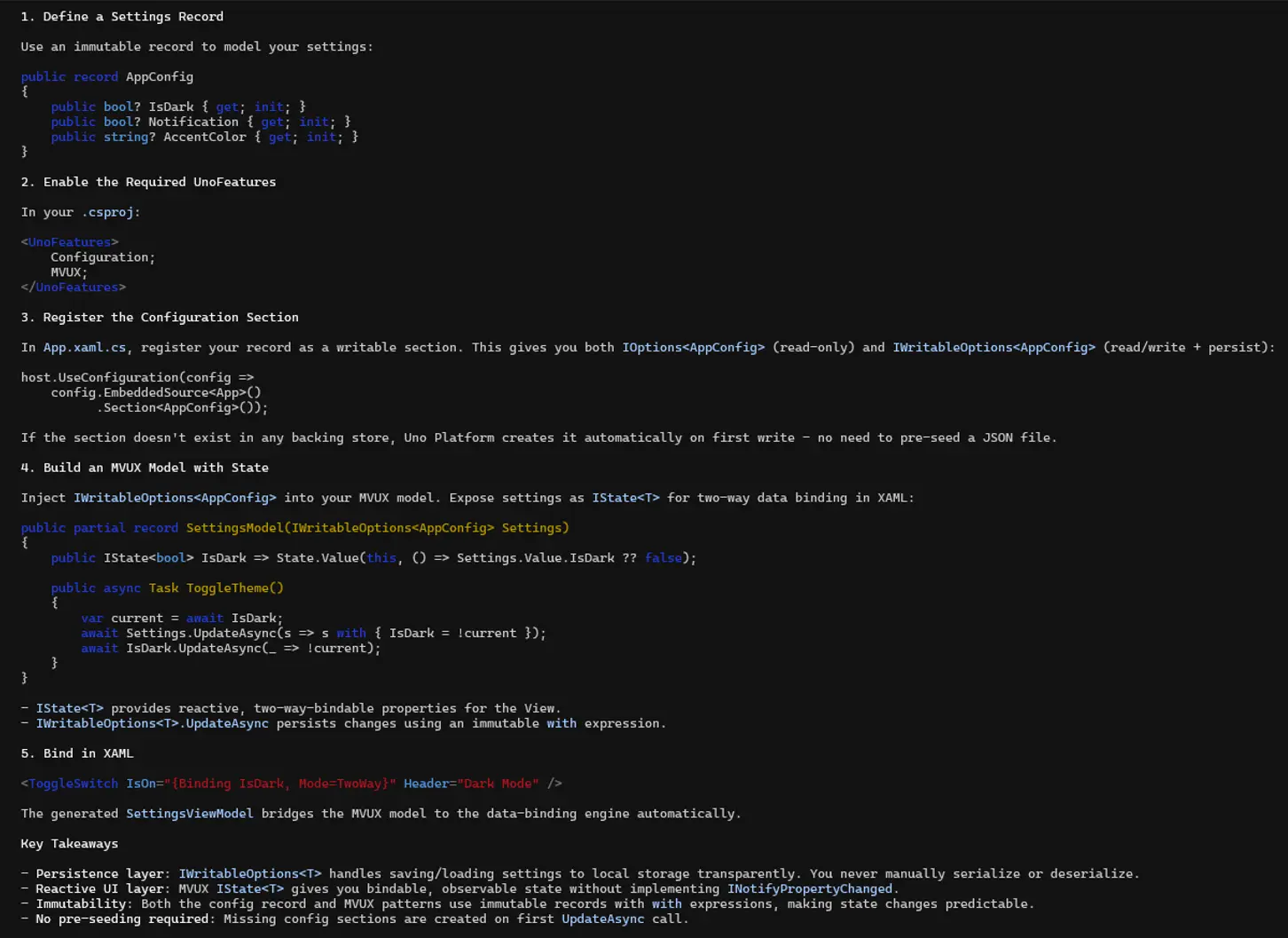
Build and run your app on any target. Then ask:
"Use App MCP to take a screenshot of the running app and get a visual tree snapshot of the current page."
uno_app_get_screenshot and uno_app_visualtree_snapshot and returns real data from your running app.This one exercises both MCPs in sequence with a real (small) feature: a button that opens a flyout.
Ask the agent:
"Using Uno MCP, look up the correct pattern for attaching a Flyout to a Button in Uno Platform. Then propose how to add a Button labeled 'About' to [MainPage] with a Flyout that displays the text 'Built with Uno Platform and MCP.' Show me the XAML change."
Review the proposed change. The agent should produce XAML like:
<Button Content="About">
      <Button.Flyout>
          <Flyout>
              <TextBlock Text="Built with Uno Platform and MCP." />
          </Flyout>
      </Button.Flyout>
  </Button>
No code-behind, no model changes - just XAML. That's the right call for a simple flyout. Apply the change. Rebuild and run. Then:
"Using App MCP, take a screenshot of the page. Confirm the About button exists in the visual tree. Then click the button and take another screenshot to confirm the Flyout appeared with the expected text."
What You Just Did
You used both MCPs in sequence:
- Uno MCP gave the agent accurate Uno Platform knowledge (ContentDialog patterns, MVUX command generation) so it proposed correct code instead of guessing
- You reviewed, applied, and built the change
- App MCP verified both the static result (button exists in visual tree) and the runtime behavior (dialog opens on click)
That third step is the important one. The agent didn't just generate code and walk away—it confirmed the code works by interacting with the running app. It clicked the button. It saw the dialog.
The agent itself reads your local project files—that's just how AI coding agents work. What the MCPs add is Uno Platform expertise (Uno MCP) and runtime verification (App MCP). Without them, the agent can read your code but doesn't know Uno Platform conventions and can't confirm what actually happens when a user taps something.
That's the entire mental model. Everything in Parts 2 and 3 builds on this loop.
Part 2 introduces the full Uno AI Dev Loop—a six-step repeatable workflow—and walks through two real scenarios: scaffolding a Settings page with MVUX and fixing a cross-platform layout bug. You'll get copy-paste prompt templates for each step.
Part 3 covers the hard cases (binding debugging, cross-platform parity verification), guardrails for when MCP is wasting your time, and daily habits to make this stick.